String Connections
Import from SQL Server Sub ConnectSqlServer() Dim conn As ADODB.Connection Dim rs As ADODB.Recordset Dim sConnString As String ‘Create the connection string. sConnString = “Provider=SQLOLEDB;Data Source=DESKTOP-TG65LTO\SQL2014; Initial Catalog=MyDbase; Integrated Security=SSPI;” ‘Create the Connection and Recordset objects. Set conn = New ADODB.Connection Set rs = New ADODB.Recordset ‘Open the connection and execute. conn.Open sConnString Set rs = conn.Execute(“SELECT * FROM finra;”) ‘Check we have data. If Not rs.EOF Then ‘Transfer result. Sheets(1).Range(“A1”).CopyFromRecordset rs ‘Close the recordset rs.Close Else MsgBox “Error: No records returned.”, vbCritical End If ‘Clean up If CBool(conn.State And adStateOpen) Then conn.Close Set conn = Nothing Set rs = Nothing MsgBox “Done “, vbCritical End Sub |
Sub ConnectSqlServer()
‘String Connection to export to SQL server
Dim conn As New ADODB.Connection
Dim i, lastRow As Integer
Dim sDate, sSymbol, market, connectString, sShortInt, sShortexempt, sShortVol As String
Set conn = New ADODB.Connection
conn.Open “Provider=SQLOLEDB;Data Source=DESKTOP-TG65LTO\SQL2014;Initial Catalog=MyDbase;Integrated Security=SSPI;”
If conn.State = adStateClosed Then
Debug.Print rs.State
MsgBox “Problem opening connection, check connection string”
End If
With Sheets(“Sheet1”)
lastRow = FindLastRow_with_nonblank_cell
For i = 1 To lastRow – 1
sDate = “‘” & .Cells(i, 1) & “‘,”
sSymbol = “‘” & .Cells(i, 2) & “‘,”
sShortInt = .Cells(i, 3) & “,”
sShortexempt = .Cells(i, 4) & “,”
sShortVol = .Cells(i, 5) & “,”
market = “‘” & .Cells(i, 6) & “‘”
connectString = “insert into dbo.finra (Sdate, Ssymbol, Svolume, SExemptVolume, TotalVolume, market ) values (” & _
sDate & sSymbol & sShortInt & sShortexempt & sShortVol & market & “);”
conn.Execute connectString
Next i
MsgBox “Completed”, vbOKOnly
conn.Close
Set conn = Nothing
End With
End Sub
Function FindLastRow_with_nonblank_cell() As Integer
Dim sht As Worksheet
Set sht = ThisWorkbook.Worksheets(“Sheet1”)
FindLastRow_with_nonblank_cell = sht.Cells(sht.Rows.Count, “A”).End(xlUp).Row
End Function
Math
![]() |
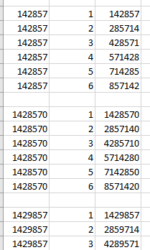
Strange Numbers example Sub StrangeNumbers() ‘Find any combination numbers that have the result contain all the numbers ‘Example: ‘142857 = 142857 X 1 ‘285714 = 142857 X 2 ‘428571 = 142857 X 3 ‘571428 = 142857 X 4 ‘714285 = 142857 X 5 ‘857142 = 142857 X 6 Dim a As Long Dim Maxno As Long Dim StartNo As Long Dim Result As Long Dim d As Integer Dim i As Integer Dim ctr As Integer Dim ii As Integer Dim lastrow As Integer ‘ StartNo = UserForm1.TextBox3 Maxno = UserForm1.TextBox4 ‘Process each X Number until max number For a = StartNo To Maxno ctr = 0 ‘Take the X Number and multiple by multiplier until 6 loop For i = 1 To 6 Result = a * i d = Len(CStr(Result)) ‘check if the result contains the X numbers FoundMatchingNumber = FindTheMatching(d, CStr(Result), CStr(a)) If FoundMatchingNumber = d Then ctr = ctr + 1 End If Next i ‘if Found counter = 6 then display X number If ctr = 6 Then lastrow = Cells(Rows.Count, “A”).End(xlUp).Row lastrow = lastrow + 1 For ii = 1 To 6 Cells(lastrow + ii, 1) = a Cells(lastrow + ii, 2) = ii Cells(lastrow + ii, 3) = a * ii Next ii End If Next a MsgBox “done” End Sub Function FindTheMatching(Multiplier_MAX As Integer, StringTobeSearch As String, StringResult As String) As Integer Dim aa As Integer aa = 0 For i = 1 To Multiplier_MAX chartobesearch = Mid(StringTobeSearch, i, 1) a = InStr(1, StringResult, chartobesearch, vbTextCompare) If a > 0 Then StringResult = Replace(StringResult, chartobesearch, “”, 1, 1) aa = aa + 1 End If Next i FindTheMatching = aa End Function |

Outlook Automation
| Implementation instruction: 1. Download “ExportOutlookToExcel.txt” and rename to “ExportOutlookToExcel.bas” 2. Make sure macro security setting is set properly. File -> Options -> Trust Center -> Click “Trust Center Settings” -> macro setting -> Check “Enable all macros” 3. Add Developer tab on outlook menu File -> Options -> customize ribbon -> check “Devloper” mini tabs on the right. 4. Install the macro a. Go to macro editor mode by pressing alt + F11 b. File -> import file. Browse and load “ExportOutlookToExcel.bas” c. Add reference: Tools-> References -> “Microsoft Excel 16.0 Object Library” 5. Add macro icon to outlook toolbar File -> Options -> customize ribbon -> click “New Group” under “Developer” (Or any tab you want) under “Choose commands from”, select “Macros”, select “Project1.ExportOutlookToExcel” and click Add button (Optional). You can change icon or the name of macro by click “Rename” 6. Run macro, click “ExportToExcel” icon on outlook toolbar |
Export Emails to Excel Sub ExportToExcel() On Error GoTo ErrHandler Dim appExcel As Excel.Application ‘Add reference: Tools-> References -> “Microsoft Excel 16.0 Object Library” Dim msg As Outlook.MailItem Dim nms As Outlook.NameSpace Dim fld As Outlook.MAPIFolder Dim itm As Object Dim wkb As Excel.Workbook Dim wks As Excel.Worksheet Dim rng As Excel.Range Dim strSheet As String Dim strPath As String Dim Rount As Integer Dim intColumnCounter As Integer Dim YesorNo As Integer Dim ErrorTxt As String ErrorTxt = “Reference Set up” Set appExcel = CreateObject(“Excel.Application”) appExcel.Application.Visible = True strSheet = “OutlookToExcel.xls” strPath = “C:\work\” strSheet = strPath & strSheet ‘Check if the file exist If Dir(strSheet) = “” Then YesorNo = MsgBox(“File does not exist, create new template?”, vbYesNo) If yestorNo = 7 Then ‘No MsgBox “You need to copy OutlookToExcel.xls to ” & strPath Exit Sub Else ‘Yes appExcel.Workbooks.Add.SaveAs strSheet End If End If ‘Select export folder Set nms = Application.GetNamespace(“MAPI”) Set fld = nms.PickFolder ‘Handle potential errors with Select Folder dialog box. If fld Is Nothing Then MsgBox “There are no mail messages to export”, vbOKOnly, “Error” Exit Sub ElseIf fld.DefaultItemType <> olMailItem Then MsgBox “There are no mail messages to export”, vbOKOnly, “Error” Exit Sub ElseIf fld.Items.Count = 0 Then MsgBox “There are no mail messages to export”, vbOKOnly, “Error” Exit Sub End If ‘Open and activate Excel workbook. ErrorTxt = ErrorTxt & “, open workbook” appExcel.Workbooks.Open (strSheet) Set wkb = appExcel.ActiveWorkbook Set wks = wkb.Sheets(1) wks.Activate With wks If .Range(“A1”) = “” Then ‘New workbook .Range(“A1”) = “Received on” .Range(“B1”).Value = “Sender Email” .Range(“C1”) = “Subject” .Range(“D1”) = “Body Text” .Range(“A1:E1”).Font.Size = 16 .Range(“A1:E1”).Font.Color = vbYellow .Range(“A1:E1”).Interior.Color = rgbDarkGreen End If Rount = .Range(“A” & Rows.Count).End(xlUp).Row ‘Find last row ‘Copy field items in mail folder. ErrorTxt = “, Error in reading email folder” For Each itm In fld.Items Rount = Rount + 1 Set msg = itm .Range(“A1” & Rount) = msg.ReceivedTime .Range(“B” & Rount) = msg.SenderEmailAddress .Range(“C” & Rount) = msg.Subject EmailTxtBody = Replace(msg.Body, vbCrLf, ” “) EmailTxtBody = Replace(EmailTxtBody, ” “, ” “) .Range(“D” & Rount) = Left(EmailTxtBody, 30) Next itm .Columns.EntireColumn.AutoFit End With Set appExcel = Nothing Set wkb = Nothing Set wks = Nothing Set rng = Nothing Set msg = Nothing Set nms = Nothing Set fld = Nothing Set itm = Nothing Exit Sub ErrHandler: Set appExcel = Nothing If Err.Number = 1004 Then MsgBox strSheet & ” doesn’t exist”, vbOKOnly, “Error” Else MsgBox Err.Number & “; Description: ” & vbCrLf & ErrorTxt, vbOKOnly, “Error” End If Set appExcel = Nothing Set wkb = Nothing Set wks = Nothing Set rng = Nothing Set msg = Nothing Set nms = Nothing Set fld = Nothing Set itm = Nothing End Sub |
| |
Binding
| The difference between EARLY Binding and LATE Binding. EARLY Binding : 1. New requires that a type library is reference (Microsoft Internet Control Reference Library) 2. IntelliSense available LATE Binding 1. CreateObject uses the registry. No reference needed 2. No IntelliSense available |
Early and Late Binding Sub Early_VS_Late_Binding() Call EARLY_Binding(“www.YAHOO.com”) Call LATE_Binding(“www.GOOGLE.com”) End Sub ‘—————————————————————– Sub EARLY_Binding(Website As String) Dim ObjIE As InternetExplorer Set ObjIE = New InternetExplorer ‘—————————— ObjIE.Navigate (Website) If ObjIE.Busy Or ObjIE.ReadyState <> READYSTATE_COMPLETE Then DoEvents End If ObjIE.Visible = True End Sub ‘—————————————————————– Sub LATE_Binding(Website As String) ‘——————————————————- Dim ObjIE As Object Set ObjIE = CreateObject(“InternetExplorer.Application”) ObjIE.Navigate (Website) If ObjIE.Busy Or ObjIE.ReadyState <> READYSTATE_COMPLETE Then DoEvents End If ObjIE.Visible = True End Sub |
Class Module
| Example of Class module implementation to populate Grade column. |
Class Module Sub StudentClassModule_M() Dim Student As clsStudent Dim i As Integer Set Student = New clsStudent ‘ The 2 lines above can be written as “Dim iStudent As New clsStudent” i = 2 While Cells(i, 1) <> “” Student.Name = Cells(i, 1) ‘Execute LET statement in class module Debug.Print “Student.Name= ” & Student.Name ‘Execute GET statement in class module Student.Marks = Cells(i, 2) Debug.Print “Student.Marks = ” & Student.Marks Cells(i, 3) = Student.Grade i = i + 1 Wend End Sub Class Property ‘Class module for Student Private strStuName As String Private StudentMark As Double Public Property Let Name(strN As String) strStuName = strN End Property Public Property Get Name() As String Name = strStuName End Property Public Property Let Marks(iMarks As Double) StudentMark = iMarks End Property Public Property Get Marks() As Double Marks = StudentMark End Property Public Function Grade() As String Dim StudentGrade As String Select Case StudentMark Case Is >= 80 StudentGrade = “A” Case 70 To 79 StudentGrade = “B” Case 50 To 69 StudentGrade = “C” Case Else StudentGrade = “F” End Select Grade = StudentGrade End Function |
Collection
| The VBA Collection is a simple native data structure available in VBA to store (collect as you wish) objects. VBA Collections are more flexible than VBA Arrays as they are not limited in their size at any point in time and don’t require manual re-sizing. Collections are also useful when you don’t want to leverage there more complex (but quite similar) Data Structures like the VBA ArrayList or even a VBA Dictionary. There are 2 ways to initiate collection: 1. SET NEW and 2. DIM NEW |
Collection with SET NEW Sub Collection_SET_NEW() Dim i As Integer Dim col_item As Collection Set col_item = New Collection ‘Add items to the collection Do While i < 3 Item_name = InputBox(“Enter Item: “, “Collection example”) col_item.Add Item_name i = i + 1 Loop ‘Retrieve items to the collection For Each Item_C In col_item Debug.Print Item_C Next Debug.Print “Before; Delete = ” & col_item.Item(2) col_item.Remove 2 ‘Delete items to the collection Debug.Print “After; Delete = ” & col_item.Item(2) ‘After Deletion, item3 becomes item2 Set col_item = Nothing If col_item Is Nothing Then Debug.Print “col_item Is Nothing” ‘This will be printed End If End Sub |
Collection with DIM NEW Sub Collection_DIM_NEW() Dim i As Integer Dim col_item As New Collection ‘Add items to the collection Do While i < 3 Item_name = InputBox(“Enter Item: “, “Collection example”) col_item.Add Item_name i = i + 1 Loop ‘Retrieve items to the collection For Each Item_C In col_item Debug.Print Item_C Next Debug.Print “Before; Delete = ” & col_item.Item(2) col_item.Remove 2 ‘Delete items to the collection Debug.Print “After; Delete = ” & col_item.Item(2) Set col_item = Nothing If col_item Is Nothing Then Debug.Print “col_item Is Nothing” ‘col_item is false. This will be NOT be printed End If End Sub |
Finding Last Row/Column
| There are certain situations where we perform some tasks by finding last used Row with data in a Column. For examples, There may be many columns with data and each column may have different number of items (rows). In this situation we need to find exact number of rows in a specific column to avoid the unnecessary looping of all rows even if there is no data. |
Find Last Row Option Explicit Sub FindLastRow() Dim i As Integer i = FindLastRow1 End Sub Function FindLastRow1() As Integer Dim lRow As Long Dim lCol As Long Dim sht As Worksheet Set sht = ThisWorkbook.Worksheets(“Sheet1”) ‘Using Row A lRow = sht.Cells(sht.Rows.Count, “A”).End(xlUp).Row Debug.Print “Using row A – Last row: ” & lRow ‘Using Region – No blank on the rows lRow = sht.Range(“A1”).CurrentRegion.Rows.Count Debug.Print “Using region – Last Row: ” & lRow ‘Using Table lRow = sht.ListObjects(“Table1”).Range.Rows.Count Debug.Print “Using Table – Last Row: ” & lRow ‘Using Range Dim Myrange As Range Set Myrange = Range(“A1:C7”) lRow = Myrange.Rows.Count Debug.Print “Using range – Last Row: ” & lRow End Function |
Find Last Column Sub FindLastCol() Dim i As Long i = FindLastColFunction End Sub Function FindLastColFunction() As Integer Dim lRow As Long Dim lCol As Long Dim sht As Worksheet Set sht = ThisWorkbook.Worksheets(“Sheet1”) ‘Find Last Column lCol = sht.Cells(sht.Columns.Count).End(xlToLeft).Column Debug.Print “Last column: ” & lCol ‘Using Region lCol = sht.Range(“A1”).CurrentRegion.Columns.Count Debug.Print “Using region – Last col: ” & lCol ‘Using Table lCol = sht.ListObjects(“Table1”).Range.Columns.Count Debug.Print “Using Table – Last col: ” & lCol ‘Using Range Dim Myrange As Range Set Myrange = Range(“A1:C7”) lCol = Myrange.Columns.Count Debug.Print “Using range – Last col: ” & lCol End Function |
Redim Preserve
| ReDim Preserve is the way to make a dynamic array and maintain the values currently stored in the array by using the ReDim Preserve VBA statement. If you want to resize your array while remembering all the elements in the array, you must use the Preserve keyword. Dynamic Array: dim myarray() as integer Static Array: dim myarray(2) as integer ReDim Limitations: 1. Only ReDim Preserve Last Dimension Dim MyArray() As Integer ReDim MyArray(1, 3) ReDim Preserve MyArray(2, 3) ‘This will cause an error 2. Cannot ReDim Static Arrays Dim MyArray(2) As Integer ReDim MyArray(3) ‘This will cause an error 3. Cannot use ReDim to Change Data Types Dim MyArray() As Integer ReDim MyArray(2) As Double ‘This will cause an error |
Contact Me Sub ReDimPreserveDemo() Dim MyArray() As String ReDim MyArray(1) MyArray(0) = “zero” MyArray(1) = “one” ReDim Preserve MyArray(2) MyArray(2) = “two” MsgBox MyArray(0) & vbNewLine & MyArray(1) & vbNewLine & MyArray(2) End Sub |
Reference
| As a programmer, it’s a good practice to add references you need on the body of the codes rather than manually added to the application. This gives an assurance that the application always work whenever new implementation is done. There are 2 ways to add references in VBA: 1. Via GUID 2. Via File reference ![]() |
Add Reference Programatically Sub X_Ref_Add_FSO_m() ‘ You need to have Reference “Microsoft scripting Runtime” to access FileSystemObject ‘ This procedure to add the reference programatically ‘ Dim ID As Object Set ID = ThisWorkbook.VBProject.references ID.AddFromFile “C:\Windows\SysWOW64\scrrun.dll” If Err.Number <> 32813 And Err.Number <> 0 Then ‘32813 = exist and 0=do no exist MsgBox Err.Number, Err.Description, Err.HelpFile, Err.HelpContext, “Microsoft scripting Runtime” Else MsgBox Err.Number & ” has been added successful”, vbCritical End If End Sub Sub FileSystemObject_implementation() ‘This procedure will fail if no “Microsoft Scripting Runtime” added in Reference ‘ Dim fso As FileSystemObject Set fso = New FileSystemObject Dim stream As TextStream Set stream = fso.CreateTextFile(“C:\work\Test.log”, True) stream.WriteLine “This line uses the WriteLine method.” stream.Write “This line uses the Write method.” stream.Close End Sub |
Via GUID Private Function AddScriptingLibrary() As Boolean Const GUID As String = “{420B2830-E718-11CF-893D-00A0C9054228}” On Error GoTo errHandler ThisWorkbook.VBProject.References.AddFromGuid GUID, 1, 0 AddScriptingLibrary = True MsgBox “Scripting ref has been added”, vbOKOnly Exit Function ‘ errHandler: MsgBox Err.Description End Function |
List References with GUID and Path info to Excel Sub ListReferencePaths() ‘To list all References along with path and GUID On Error Resume Next Dim i As Long With ThisWorkbook.Sheets(1) .Cells.Clear .Range(“A1”) = “Reference name” .Range(“B1”) = “Full path to reference” .Range(“C1”) = “Reference GUID” End With For i = 1 To ThisWorkbook.VBProject.References.Count With ThisWorkbook.VBProject.References(i) ThisWorkbook.Sheets(1).Range(“A65536”).End(xlUp).Offset(1, 0) = .Name ThisWorkbook.Sheets(1).Range(“A65536”).End(xlUp).Offset(0, 1) = .FullPath ThisWorkbook.Sheets(1).Range(“A65536”).End(xlUp).Offset(0, 2) = .GUID End With Next i On Error GoTo 0 End Sub |
Web Automation
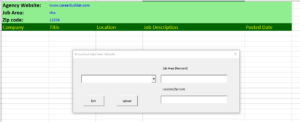
![]() Implementation instruction: This excel automatically download Job list to Excelsheet from different websites. The sheet has “Setting” page to determine each website configuration. Each macro is to be used for each website. Since the mapping tags are different, it’s a challenge to make the setting alone will work for all. The macro codes still have to be modified to adjust the differences. To access website, I use “getElementById” and “getElementsByClassName”. |
| Job search Download |
| |